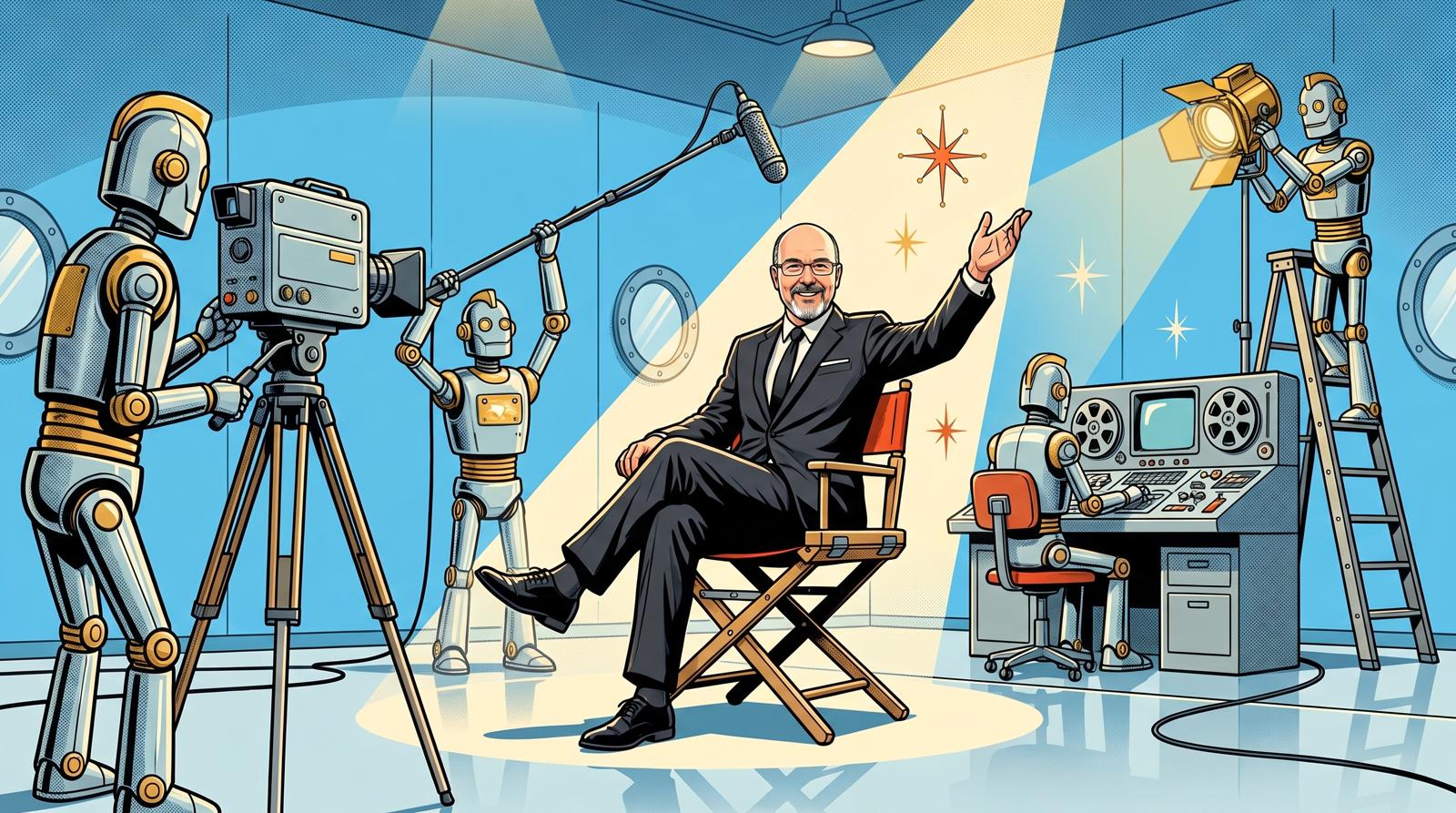
Making a good video used to take a camera crew, an editor and a lot of money.
Not anymore. Today, AI tools can do most of that work for you. The hard part is knowing which tools to use, because there are hundreds of them.
My name is Damon Nelson. I build marketing software for small business owners, and I use AI tools every day to run my own marketing. Below are 26 of the best AI video tools right now, grouped by the job they do. For each one, you’ll learn what it is and when to use it.
Think of them like a film crew. Each one has one job. You don’t need the whole crew. You only need the people for the jobs you actually do.
This list is based on the October 2026 AI Video Cheat Sheet from Orgrowth.
Step 1: The control center
These two tools sit in the middle and tell the other tools what to do.
Claude Code
What it is: An AI assistant from Anthropic that runs on your computer. It can open and save your files, and it can connect to other apps through plug-in connections called MCP. That means you can type one request and Claude will do the research, write the script, edit the video and make the images by controlling your other tools for you.
When to use it: All the time. It is the boss of your video crew. You can also save your best instructions as “skills,” so you get the same quality every time you ask for something. I use Claude Code this way myself. It runs my image, voice and animation tools for me.
Notion
What it is: A note-taking and planning app.
When to use it: Make one page that describes who your customers are, what you sell and how you like to talk. Then connect Notion to Claude so every script starts from that page. This is what keeps your videos sounding like you instead of like a robot. Notion is also a good place to keep your video calendar and your scripts.
Step 2: Study what is already working
Before you make a video, look at videos in your market that are already getting views. These three tools help you study them.
yt-dlp
What it is: A free program that downloads videos from YouTube, Instagram and thousands of other websites.
When to use it: When you find a video you want to learn from. Claude can run it for you and save the video, just the audio, or just the captions, so Claude can break it down shot by shot. Use downloads to study, not to repost someone else’s work.
FFmpeg
What it is: Free software that edits video when you type commands instead of clicking buttons. It looks scary, but Claude does the typing for you.
When to use it: When you want Claude to actually “see” a video. FFmpeg can pull still pictures out of a video so Claude can look at each shot. It can also trim clips, join clips together and fix sound that is too loud or too quiet.
Gemini
What it is: Google’s AI. It is cheap and good at handling long videos and audio files.
When to use it: When you need a written transcript of a video or podcast, with times marked. It can also summarize a long video so you can decide if it is worth watching. You get a key from Google AI Studio, and Claude can use it for you.
Step 3: Record your video
Riverside
What it is: A recording tool for calls, interviews and podcasts. It records sharp 4K video on each person’s own computer, so a bad internet connection does not ruin the final video.
When to use it: Any time you record with another person. Its Magic Clips feature also cuts a long recording into short clips for social media.
Tella
What it is: A screen recorder that records your screen and your face at the same time without lag.
When to use it: For tutorials and demos. It cuts out silent pauses for you, and it saves your screen and your face as separate files so you can arrange them however you want.
OBS
What it is: Free recording and live-streaming software.
When to use it: When you don’t want to pay for a recorder, or you want to stream live to YouTube. It works well, but it takes some setup and is harder to use than Tella.
Loom
What it is: A quick screen-recording tool that gives you a link to share right away.
When to use it: For a fast message to a client or teammate. Skip it for videos you plan to post, because the video can get choppy if your internet is not great.
Step 4: Edit your video
Pick one editor. You don’t need five.
Palmier Pro
What it is: A video editor built to work with AI. Claude can edit your video from one request, and then you can fine-tune it yourself on a normal timeline.
When to use it: When you want AI to do the first edit for you, like cutting out pauses, adding captions and moving clips around. The editor is free. You only pay when it creates new images, video or audio.
CapCut
What it is: A fast, easy video editor for your phone or computer.
When to use it: For simple videos of you talking to the camera. Its automatic captions look great without any extra work.
Instagram Edits
What it is: Instagram’s free editing app.
When to use it: As the last step before you post to Instagram. Its captions are not as good as CapCut’s, but it exports in 4K with no watermark, and finishing your video in Instagram’s own app may help it get shown to more people.
Descript
What it is: An editor that turns your video into text. Delete a word from the text, and that part of the video is deleted too.
When to use it: If you hate working on a timeline. It can also remove “um” and “uh” with one click. Just expect it to feel slow and clunky.
Premiere Pro
What it is: Adobe’s professional video editor.
When to use it: For big, complicated projects, like videos shot with several cameras. Most people should hand that work to a professional editor. If you are editing your own short videos, you probably don’t need to pay for it.
Step 5: Add captions, animation and color
HyperFrames
What it is: A free tool from HeyGen that lets Claude build captions, titles, charts and animations. You describe the look, and it creates it on your own computer.
When to use it: When you want word-by-word captions that match your voice, or animated titles, without learning animation software.
Remotion
What it is: A tool that makes videos from computer code. Claude writes the code, and Remotion turns it into a video.
When to use it: When you want captions and text that look exactly the same in every video, or when you want to make many versions of one video from a single template. It is free for individuals and small teams. Bigger companies should check the license.
Colourlab AI
What it is: An AI tool that fixes the color in your video.
When to use it: When you filmed with more than one camera, like your phone and a drone, and the colors don’t match. It makes all the clips look like they belong in the same video.
Step 6: Create images and video with AI
These tools make pictures and video clips that you never had to film.
GPT Image 2
What it is: OpenAI’s image maker, the one inside ChatGPT.
When to use it: For thumbnails and any image that needs words in it. You can also upload a photo and ask it to change the background or the outfit. It is great for making a starting picture that another tool will turn into video.
Kling 3.0
What it is: An AI tool that turns a still picture into a moving video clip.
When to use it: When you have one great image and want it to move in a way that looks real. It can also copy the movement from another video onto your character.
Seedance 2.0
What it is: A video maker from ByteDance, the company behind TikTok. It can create several scenes in one go.
When to use it: For short, movie-style clips with more than one scene. Start from your own picture to keep your character looking the same in every scene.
Higgsfield
What it is: One website that gives you most of the big image and video AI models in one place. Its MCP connection lets Claude make images and video for you right from a chat.
When to use it: When you don’t want a separate account for every AI model. It can also restyle real video into a cartoon or animated look while keeping the original movement.
invideo Agent
What it is: An AI video assistant that you direct like a film crew. It remembers your characters, places and style from shot to shot.
When to use it: When you want to turn a script into a full set of shots with voices and music. You will still put the final video together in your editor.
VidRush
What it is: A tool that makes long YouTube videos where nobody appears on camera. These are called “faceless” videos.
When to use it: When you want to test an idea for a faceless YouTube channel before you pay an editor. You give it one description, and it gives you back a script, visuals and an edited video.
Step 7: Add a voice
Fish Audio
What it is: AI voices that sound natural. You can add notes like [relaxed] or [excited] right in your script to change how a line is read.
When to use it: For voiceovers on faceless videos. It can also copy your own voice from a short recording, and it has a big library of voices with different accents.
ElevenLabs
What it is: The best-known AI voice company.
When to use it: When you need a polished voiceover read from a script, a copy of your own voice for every video, sound effects, or a version of your video in another language.
HeyGen
What it is: A tool that changes the mouth movements in a video so they match new audio. This is called lip sync.
When to use it: When you change the words in a video after filming, or when you translate a video into another language and want your lips to match. It can also make an AI version of you for quick talking videos.
Where to start if you only pick a few
- If you talk to the camera: Tella or Riverside to record, CapCut to edit.
- If you make faceless videos: VidRush or invideo Agent to build the video, Fish Audio or ElevenLabs for the voice.
- If you want AI to run the whole thing: Claude Code in the middle, connected to Palmier Pro and Higgsfield.
The one job AI can’t do for you
The last tool on the list is you.
AI can do about 90 percent of the work: the research, the first drafts, the editing and the images. You do the 10 percent that matters most. You make the final check on every video. You show your face. And you decide what is worth posting.
If you hand that last 10 percent to a machine, your videos will look like everybody else’s. Keep it for yourself, and AI gives you something better than more videos. It gives you your time back.
Want more plain-English guides like this one? Join the Pit Crew, my weekly email. One email a week, no pitch parade.